Set up two-factor sign-in
Three steps, about five minutes.
What it is
An extra six-digit code, from an app on your phone, that you enter after your password to keep your account secure.
Why it matters
- Passwords get stolen and reused.
- AI makes phishing emails and fake sign-in pages hard to spot.
- With two-factor on, a stolen password alone is not enough.
1. Open an authenticator app
Install one if you need to, then open it: Google Authenticator, Microsoft Authenticator or Bitwarden Authenticator (all free), or 1Password.
2. Add your account
- Scan the QR code in your app: tap +, choose Scan a QR code and point your phone at the QR code (1).
- Or copy and paste the setup key into your app, handy when the set-up page is on the same phone: copy the key (2), then in the app tap +, choose Enter a setup key, paste it and pick Time based.
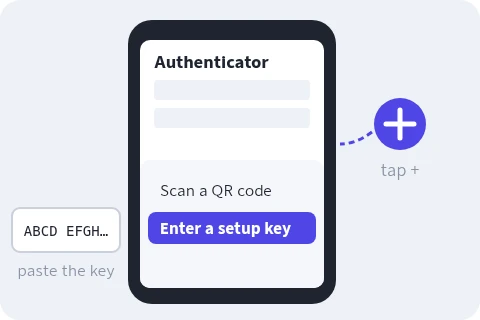
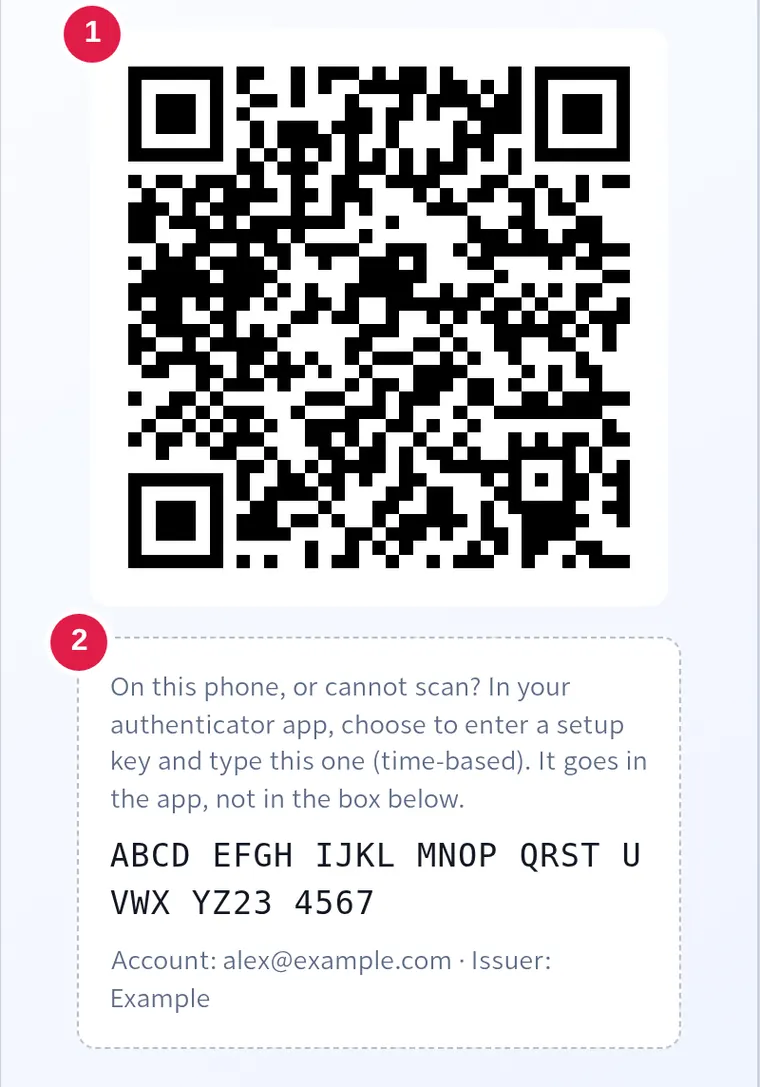
Exact buttons for your app:
Google Authenticator
- Tap +, then Scan a QR code.
- Or tap +, then Enter a setup key: account Gamera, paste the key, Time based, Add.
Microsoft Authenticator
- Tap +, then Other account (Google, Facebook, etc.), not "Work or school account", and scan.
- Or, on the camera screen, tap Enter code manually: account Gamera, paste the key as the secret key, Finish.
Bitwarden
- Bitwarden Authenticator: tap + and scan, or tap Enter key manually and paste the key. Choose Save here.
- Bitwarden Password Manager (Premium or a paid plan): edit the login, Set up TOTP, scan or paste the key, Save.
Authenticator guide (opens in a new tab) · Password Manager guide (opens in a new tab)
1Password
- Edit the login for Gamera, select Add More, then One-Time Password.
- Scan the QR code (on a computer, 1Password reads it from your screen) or paste the key, then Save.
3. Enter the code
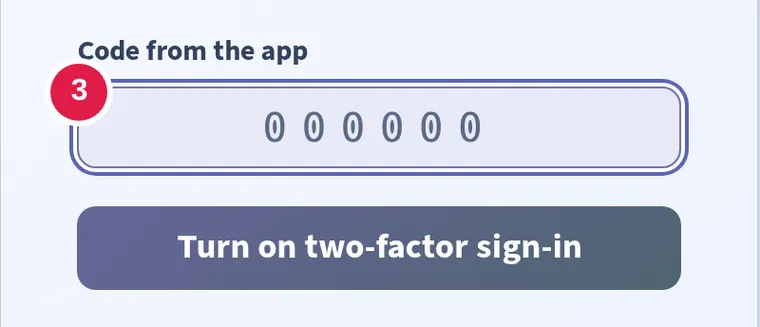
Type the six-digit code the app shows into the code box (3) and select Turn on two-factor sign-in.
Opened this guide from the set-up page? Switch back to that tab.
Save your recovery codes
Next you will see ten recovery codes, shown only once. Each one lets you sign in a single time if you lose or replace your phone, so keep them somewhere safe, such as your password manager.
Trouble?
- Scanned with your phone's camera
- Open your authenticator app and scan from there instead.
- "Please match the requested format" or "That looks like the setup key"
- The key goes into your app. The code box takes the six digits the app shows.
- "That code did not match" or "did not work"
- Set your phone's date and time to automatic, then try the current code.
- "That set-up code expired"
- Add the new QR code, and once it works, delete the older entries.
- Your app lists Gamera twice
- Only one entry works. Try the other, then delete the one that fails.
- New or lost phone
- Move your codes with your app's transfer or export option before resetting a phone. Lost it? Sign in with a recovery code, or ask your administrator to reset two-factor sign-in.